
Skip to content
Linari logo

Linari

Book a Demo

User

7
  • Login
  • Profile
  • Change Image
  • Change Password
  • Culture
  • Template
  • Exit (Logout)

User menu

2
  • Search
  • Favorite

Navigation

10
  • Filter
  • Date
  • Text and Number
  • List
  • Order
  • Navigation Bar
  • Download Report
  • Select Rows
  • Create New View
  • Switch Between Views

MasterData

12
  • Sender
  • Product
  • Type Code
  • Product grouping
  • Orderer
  • Supplier
  • Owner
  • Warehouse
  • Storage Group
  • Worker
  • Driver
  • Delivery Planning

Receiving Management

10
  • Purchase Order
  • Receiving Order
  • Receiving
  • Receiving Worker Assign
  • Receiving Count
  • Receipt Create
  • Receipt
  • Putaway Worker Assign
  • Putaway Complete
  • Return from Store

Shipping Management

12
  • Shipping Order
  • Picking Location Assign
  • Picking Worker Assign
  • Picking Finish
  • Checking
  • Consolidation
  • Dispatch
  • POD
  • Invoice
  • Return to Supplier
  • Pallet Manifest
  • Waybill

Inventory Management

10
  • Inventory
  • Inventory Turneover
  • Location Inventory
  • Location Turnover
  • Inventory With Location
  • Location Transfer
  • Replenishment
  • OnHand
  • Inventory Modify
  • Cycle Count

Receiving Report

4
  • Purchase Order Report
  • Receiving Detail
  • Receiving Task
  • Putaway Task

Shipping Report

4
  • Picking Task
  • Invoice Detail Report
  • Shipping Order Detail
  • Pallet Manifest Report

Pallet Management

5
  • Pallet Type
  • Pallet Inventory
  • Pallet Modify
  • Pallet Transfer
  • Pallet History

Integeration

7
  • Product (Integrated)
  • Supplier (Integrated)
  • PO Received (Integrated)
  • PO Sent (Integrated)
  • Store (Integerated)
  • LPO Received (Integrated)
  • LPO Sent (Integerated)
View Categories
  • Home
  • Docs
  • MasterData
  • Delivery Planning

Delivery Planning

1 min read

 To register each customer’s request precise planning must be carried out.

Delivery Planning, linari, www.linari.app, wms, Warehouse, Delivery Planning information, Delivery Planning submenu
Tiny man ordering products online via smartphone. App, phone, order flat illustration. Fast delivery service and shipment concept for banner, website design or landing web page


To do this click on the Master Data menu and select the Order submenu.
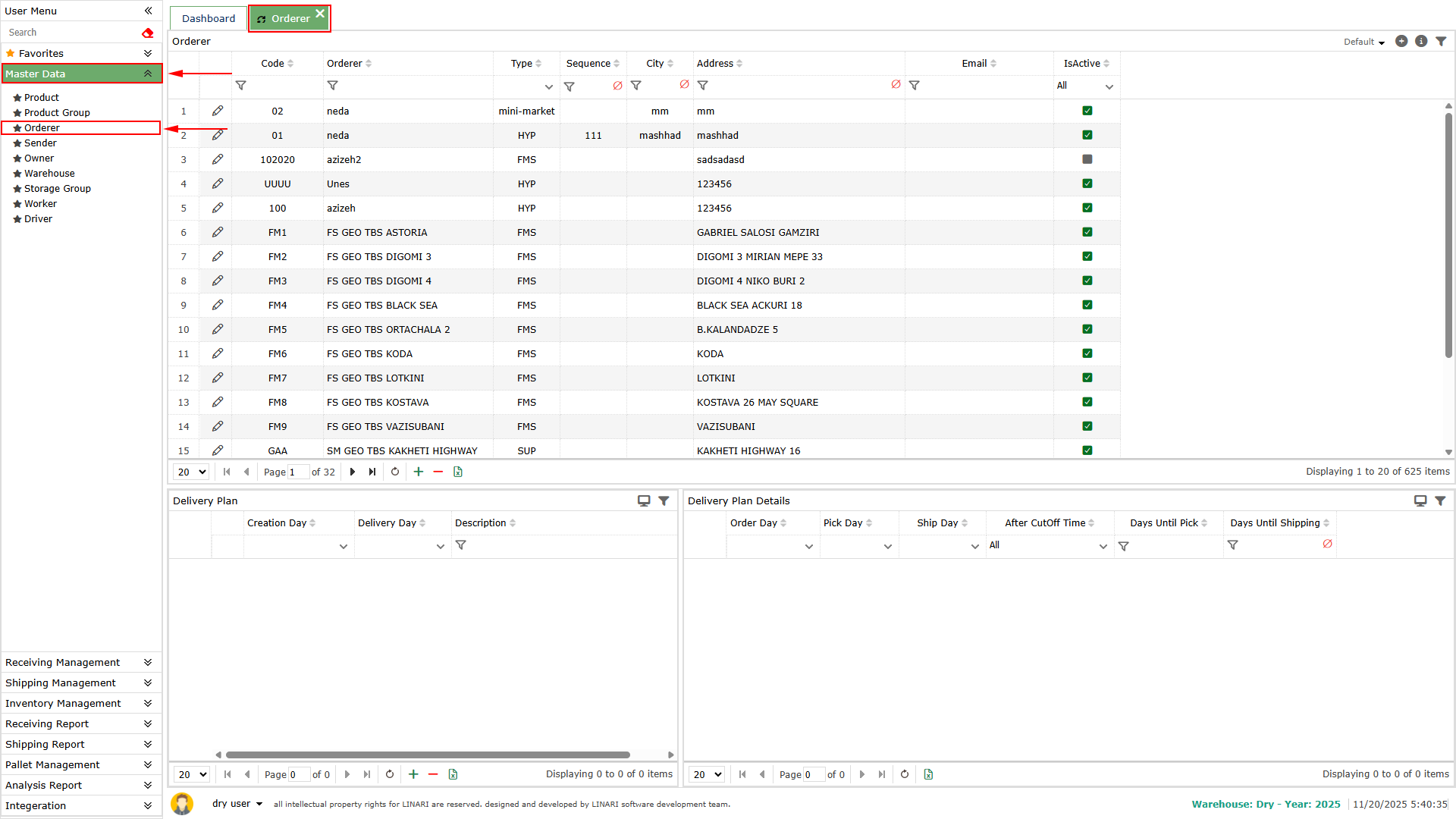

From the customer list select the desired customer and click on it. In the Delivery Plan list the planning information of that customer is displayed.


Click on the Delivery Plan list and press the + button the form opens.
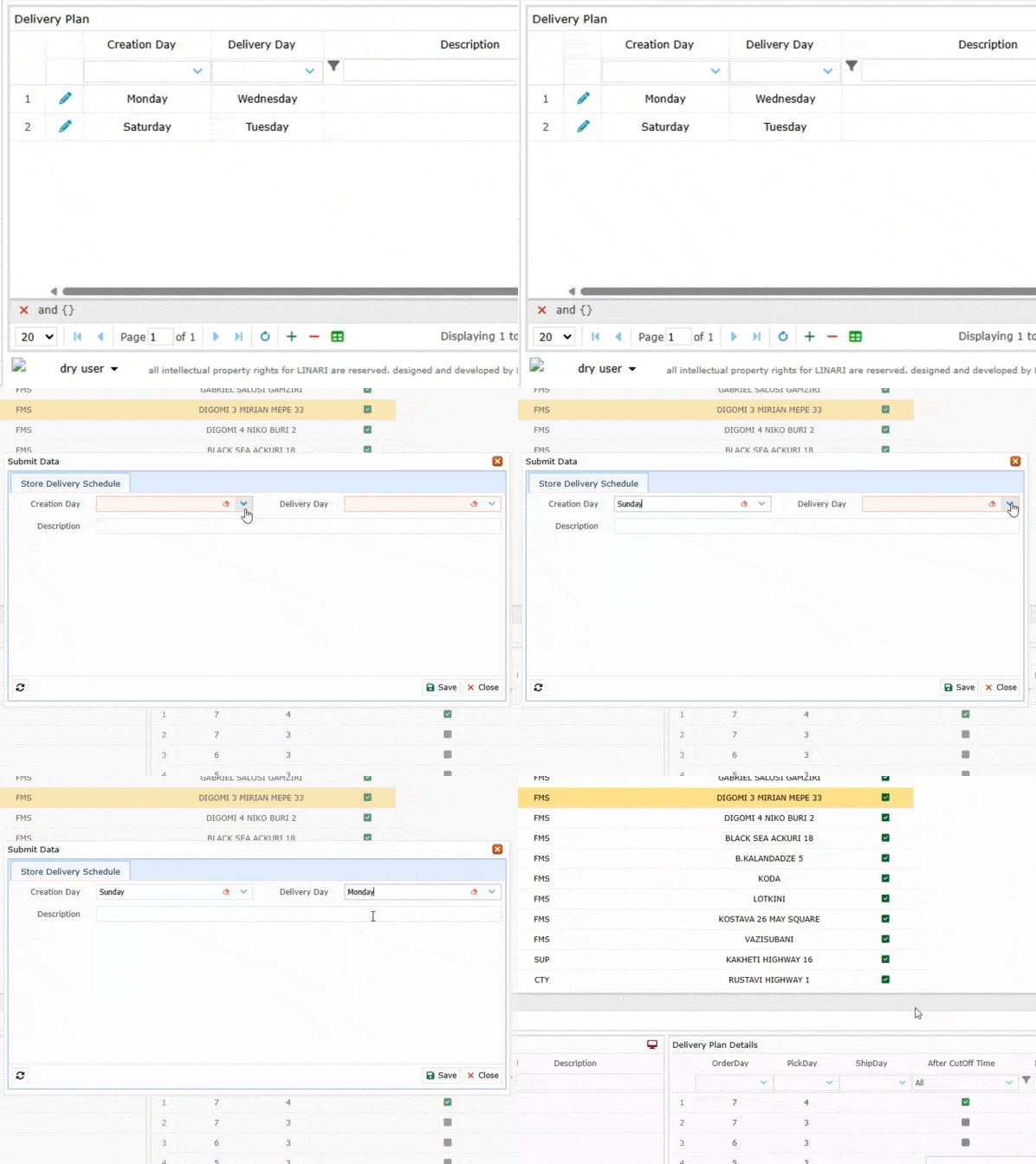
In the Creation Day section specify and register the day of the week. For example we select Sunday. This means that the requests registered until Sunday will be planned.
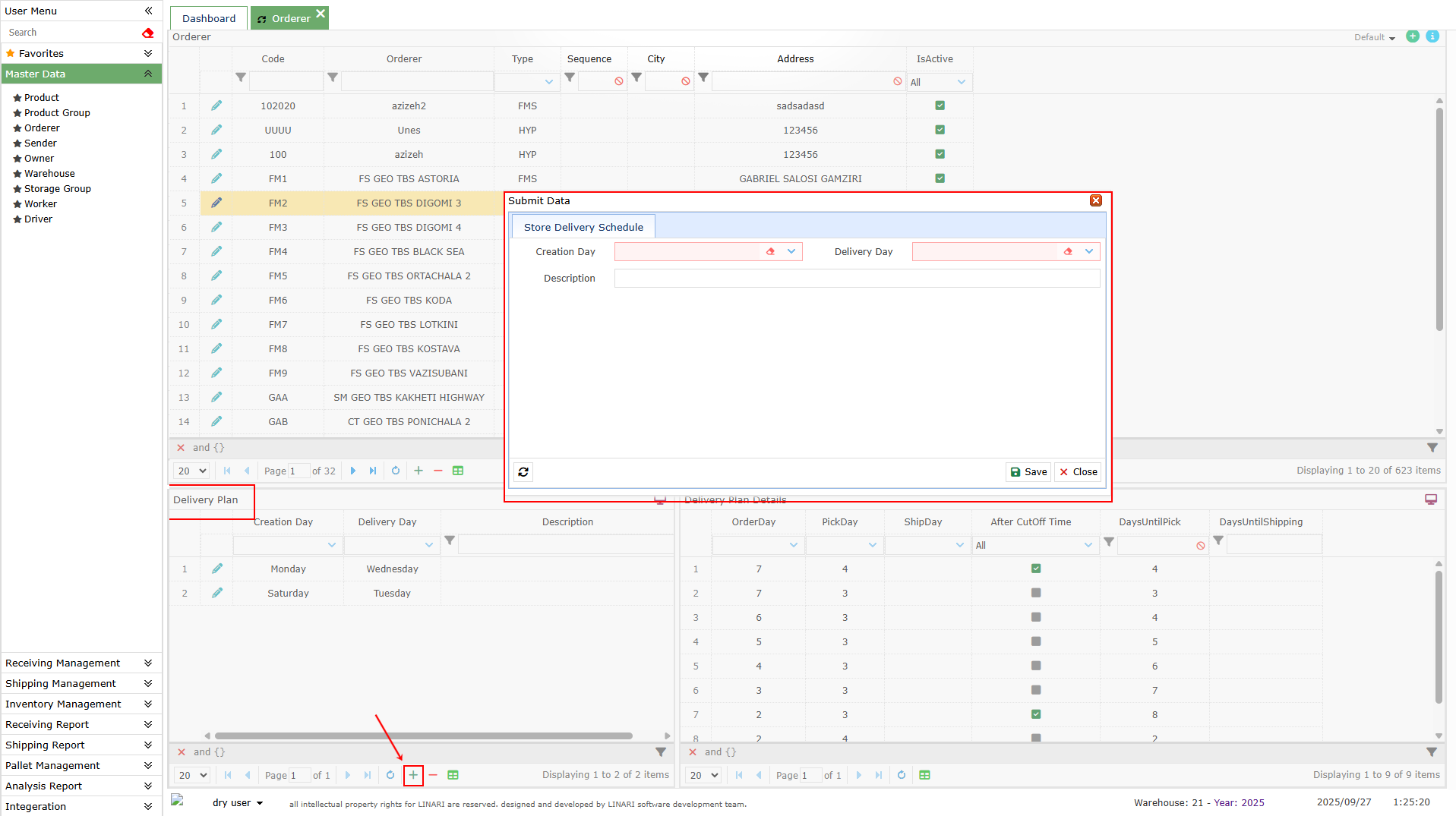

In the Delivery Day section specify and register the delivery day of the request. For example we select Tuesday. This means that the customer must receive the requests registered until Sunday on Tuesday.
At the end click the Save button and the planning will be registered and displayed in the Delivery Plan list. When we click on it the planning details will be displayed in the Delivery Plan Details list.
Delivery Planning, linari, www.linari.app, wms, Warehouse, Delivery Planning information, Delivery Planning submenu

The Order Day column is the day the order is registered by the customer.
The Pick Day column is the day based on the planning when the product is prepared for pickup from the warehouse and final delivery.
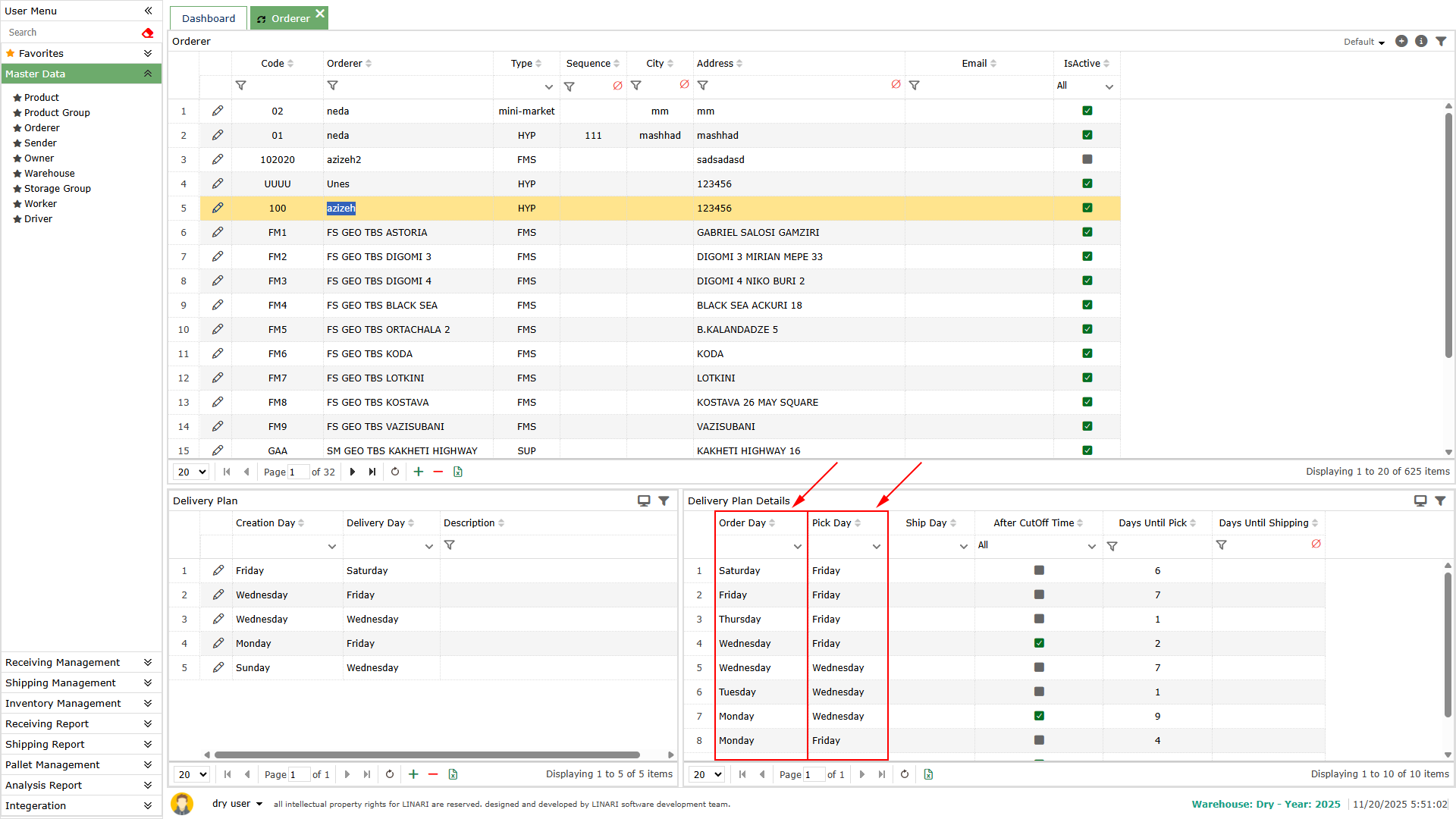

The After CutOff Time column is a point in time in the day we planned dividing the day into two parts which may have the same or different planning. The CutOff Time is specified in the warehouse settings. As we can see in the Delivery Plan Details list two rows are registered for the Creation Day. In one of them the After CutOff Time column is displayed as selected indicating planning in the first half of the day and in the other as unselected indicating planning in the second half of the day.
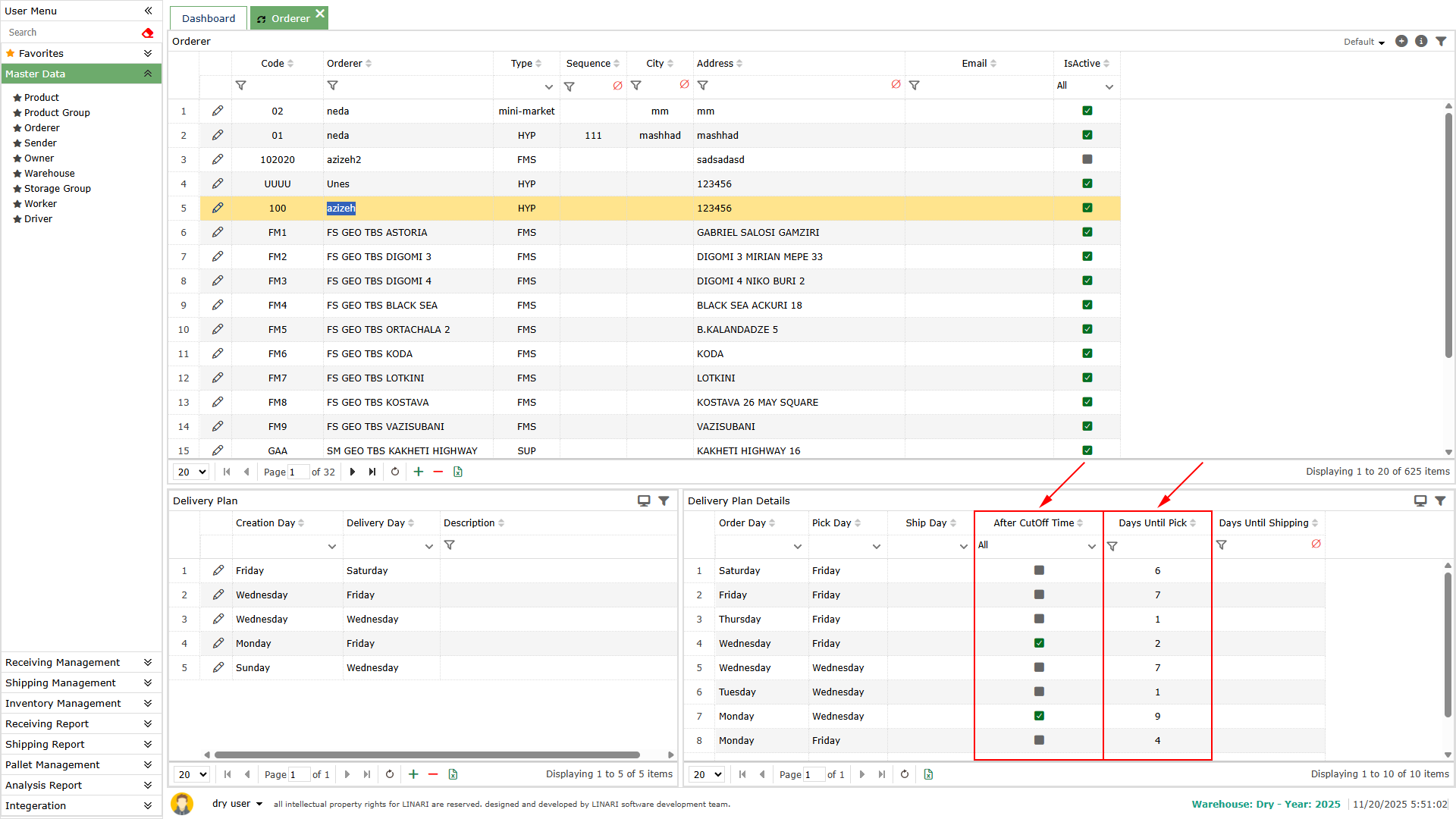

The Days Until Pick column shows the number of days until the product is picked.For this planning to take effect a shipping request must be registered for the desired user. After registering the shipping request calculations will be made based on the planning conditions and the day of the week on which the request was registered. The results can be seen in the Due Day and Picking Plan On columns in the Shipping Management menu under the Shipping Order submenu.


In the Picking Plan On column the date of product collection for delivery is displayed and in the Due Day column the number of days remaining until the Picking Plan On date is displayed.
In the Shipping Order Detail section the details of the request are visible. When the request falls within the specified time range and the product collection operation from the warehouse is carried out the Is On Pick Plan column will be displayed with a green check mark otherwise this column will remain unchecked.

Leave a Reply Cancel reply

Your email address will not be published. Required fields are marked *

Linari
  • Home
  • Services
  • Docs
  • About us
  • Contact us
  • Company Profile

All rights reserved

Loading...

User

  • Login
  • Profile
  • Change Image
  • Change Password
  • Culture
  • Template
  • Exit (Logout)

User menu

  • Search
  • Favorite

Navigation

  • Filter
  • Date
  • Text and Number
  • List
  • Order
  • Navigation Bar
  • Download Report
  • Select Rows
  • Create New View
  • Switch Between Views
betterdocs-category-icon

MasterData

  • Sender
  • Product
  • Type Code
  • Product grouping
  • Orderer
  • Supplier
  • Owner
  • Warehouse
  • Storage Group
  • Worker
  • Driver
  • Delivery Planning
betterdocs-category-icon

Receiving Management

  • Purchase Order
  • Receiving Order
  • Receiving
  • Receiving Worker Assign
  • Receiving Count
  • Receipt Create
  • Receipt
  • Putaway Worker Assign
  • Putaway Complete
  • Return from Store
betterdocs-category-icon

Shipping Management

  • Shipping Order
  • Picking Location Assign
  • Picking Worker Assign
  • Picking Finish
  • Checking
  • Consolidation
  • Dispatch
  • POD
  • Invoice
  • Return to Supplier
  • Pallet Manifest
  • Waybill
betterdocs-category-icon

Inventory Management

  • Inventory
  • Inventory Turneover
  • Location Inventory
  • Location Turnover
  • Inventory With Location
  • Location Transfer
  • Replenishment
  • OnHand
  • Inventory Modify
  • Cycle Count
betterdocs-category-icon

Receiving Report

  • Purchase Order Report
  • Receiving Detail
  • Receiving Task
  • Putaway Task
betterdocs-category-icon

Shipping Report

  • Picking Task
  • Invoice Detail Report
  • Shipping Order Detail
  • Pallet Manifest Report
betterdocs-category-icon

Pallet Management

  • Pallet Type
  • Pallet Inventory
  • Pallet Modify
  • Pallet Transfer
  • Pallet History
betterdocs-category-icon

Integeration

  • Product (Integrated)
  • Supplier (Integrated)
  • PO Received (Integrated)
  • PO Sent (Integrated)
  • Store (Integerated)
  • LPO Received (Integrated)
  • LPO Sent (Integerated)

Insert/edit link

Enter the destination URL

Or link to existing content

    No search term specified. Showing recent items. Search or use up and down arrow keys to select an item.