Help centre
How to put away goods in Linari WMS
In short. In a warehouse with locations, received goods wait for put-away before anyone can pick them. A supervisor gives the put-away tasks to workers; the worker scans the location and enters the quantity on the handheld. When the whole quantity is placed, the stock is available in those locations.
- After the receipt, the tasks appear on Putaway Worker Assign.
- Assign a worker with Assign Worker, or let Linari choose locations with AutoPut.
- On the handheld, open Putaway, scan the Location Code and enter the Quantity.
- Finish the task with the tick. Without a handheld, use Put In Location and Complete Bulk on the web.
- The stock becomes available and the receiving line moves to Finish.
Before you start
- Put-away exists only in a warehouse with Has Location on. Without locations, stock is available at the receipt.
- The locations exist in this warehouse and are not locked for put-away.
- The worker has the Putaway permission on the handheld.
- For AutoPut, each product needs a fixed location or a storage group with locations, and a location capacity on its default unit. Without a capacity, AutoPut places one unit per location.
Step by step: in the web app
- Open Receiving Management > Putaway Worker Assign. Tasks without a worker are in the upper grid, workers on the right, assigned tasks in the middle.
- Select one worker and one or more tasks, click Assign Worker and confirm. The tasks appear on the worker’s handheld.
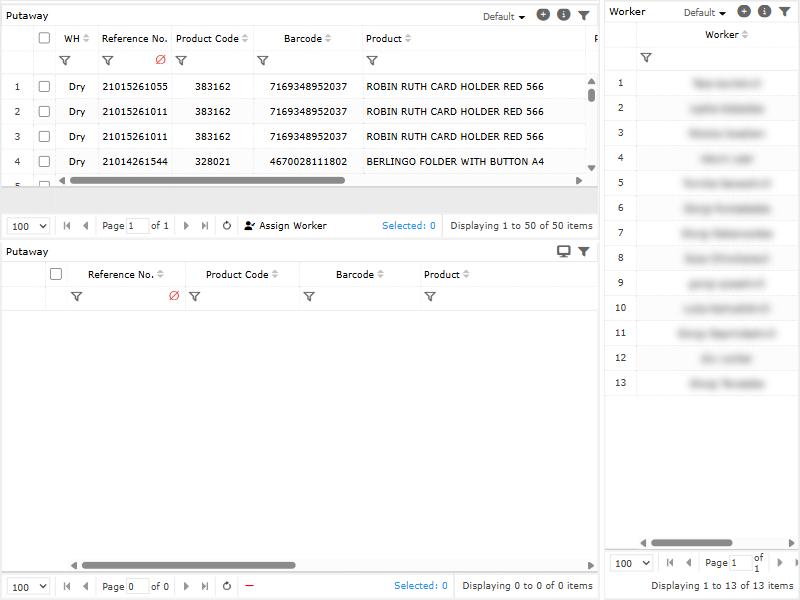
- Optional, if your role shows the AutoPut button: select tasks and click AutoPut. Linari fills in the locations: first the product’s own location, then the free locations of its storage group, in put-away sequence, up to each location’s capacity. The chosen locations are reserved. If there is not enough room, nothing is reserved and you see an error. AutoPut runs only when you click it.
- To put away without a handheld, open Receiving Management > Putaway Complete. Select tasks, click Put In Location and enter the Location Code: the whole remaining quantity goes to that location. Then select the tasks and click Complete Bulk.
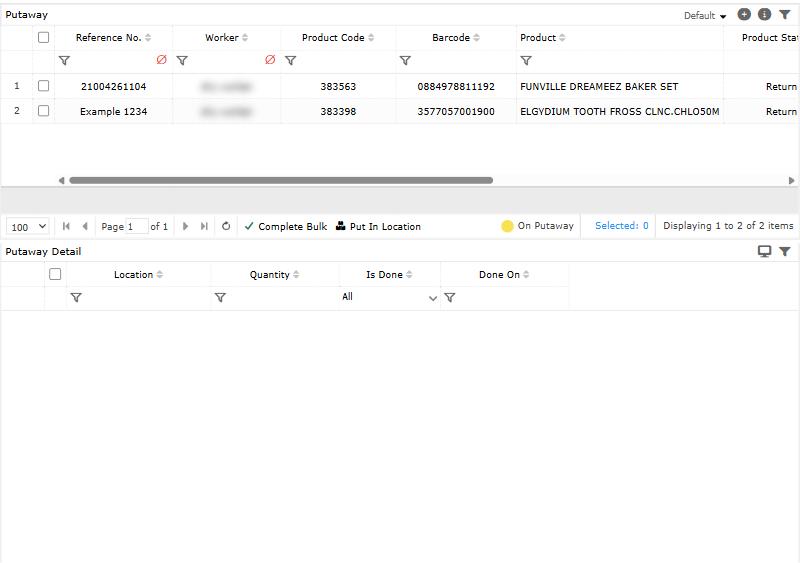
- To take a worker off a task, select it in the lower Putaway grid and click the red minus button. This is possible only before the task is finished, and it also deletes the locations already entered for that task.
Step by step: on the handheld
- On the home screen, tap Putaway. Depending on your permissions you see one or both tabs: Item lists single tasks, PO groups them by receipt.
- Tap a task. The Putaway screen shows the product and the quantity to place.
- Scan the Location Code and enter the Quantity (for weighed goods, Weight in kg). Add the line.
- To split across locations, add more lines. Each location can appear once per task, and the total cannot exceed the task quantity.
- When the total equals the task quantity, tap the tick, then Yes at «Are you sure to finish this putaway?».
Locations entered on the web are read-only on the handheld; change them on the web.
Rules Linari checks
- The location belongs to this warehouse and is not locked for put-away.
- The total placed equals the task quantity when the task is finished.
- When you choose the location yourself, Linari does not check capacity, product mix or whether the location is occupied. AutoPut does use free locations and capacity.
How settings change put-away
Linari sets these during setup; ask your Linari contact to change one.
| Setting | What changes |
|---|---|
| Has Location | Put-away tasks are created only when this is on. |
| Put Automatically Return, with a Return Location | Returned goods go to the return location at once, with no put-away task. |
| Roll-cage product type (warehouse Config) | Roll-cage products skip put-away and are available at the receipt. |
| Weight (warehouse Config) | The handheld asks for Weight in kg and accepts decimals. |
| Location: put-away lock | A locked location refuses put-away. |
| Location: put sequence | The order in which AutoPut fills locations. |
| Product unit: location capacity | How much AutoPut places in one location. |
Statuses
| What | Moves on when |
|---|---|
| Put-away task: open, then assigned | A worker is assigned; removing the worker makes it open again. |
| Put-away task: done | The total is placed and the task is finished. |
| Receiving line: OnPutaway, then Finish | All put-away tasks of the line are done. |
| Receiving: Finish | All its lines are Finish. |
Common problems
| Message | Why | What to do |
|---|---|---|
| This location \[X\] is locked for put-away. | The location is locked for put-away. | Choose another location, or ask a supervisor to unlock it. |
| This location \[X\] is not in this warehouse. | The code belongs to another warehouse, or was mistyped. | Scan the location label again. |
| you can not scan duplicate location code! | The location is already on this task. | Remove that line and add it again with the full quantity. |
| Total scanned quantity is more than the required quantity | The lines add up to more than the task. | Lower the last quantity. |
| Your total scanned quantity is less than the required quantity. | Part of the quantity has no location yet. | Add a line for the rest. |
| Insufficient locations for: PutawayID=… UnallocatedQty=… | AutoPut found too few free locations. | Put the task away by hand, or add free locations to the storage group. |
| Putaway is done, cannot unassign worker. | The task is finished. | Nothing to undo; the stock is already in place. |
| This putaway can only be modified through the panel | The locations were entered on the web. | Change them on Putaway Complete. |
What happens next
The stock is ready for Pick orders. For what put-away tracks and why, see Put-away.