Help centre
How to receive goods in Linari WMS
In short. Receiving turns a delivery into stock. A supervisor gives the receiving to a worker, the worker counts it on the handheld, and the supervisor confirms the count and creates the receipt.
- Open the receiving: it comes from a purchase order, is entered by hand, or is uploaded from Excel.
- Assign a worker on Receiving Worker Assign.
- The worker counts the goods on the handheld under Count.
- The supervisor checks and confirms the count on Receiving Count.
- The supervisor creates the receipt on Receipt Create. In a warehouse with locations, put-away starts next.
Before you start
- The products and their barcodes exist in Linari. A barcode that belongs to another product is rejected.
- The worker can sign in on the handheld, has the warehouse selected, and has the Count permission.
- Your web role can open the pages under Receiving Management.
- In a warehouse with locations, the locations exist, because the goods are put away after the receipt.
This article covers a standard warehouse. Break-down (BD) warehouses receive differently and get their own article.
Step by step: in the web app
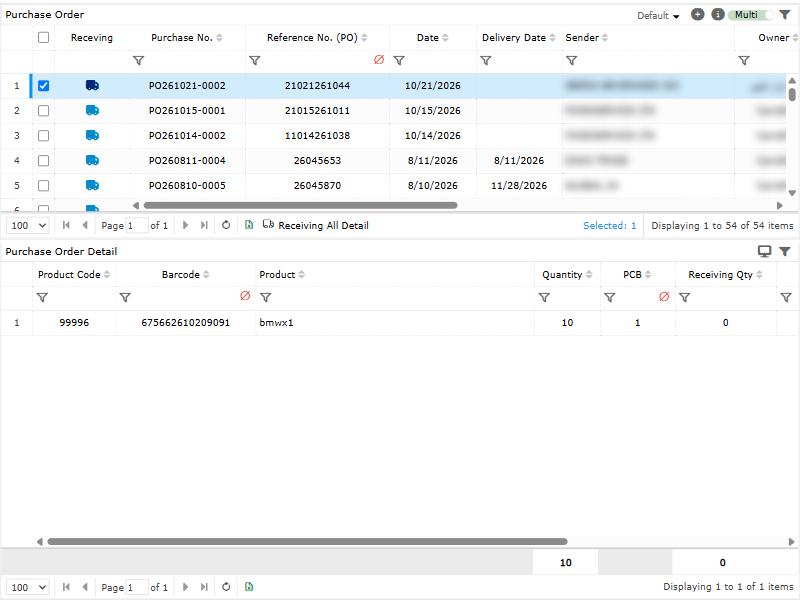
- Get the receiving. To receive a purchase order, open Receiving Management > Receiving Order, select the purchase order and click Receiving All Detail. A receiving can also be entered by hand on Receiving, or uploaded from Excel with Upload. It starts in status Initial, and you can still edit or remove it.
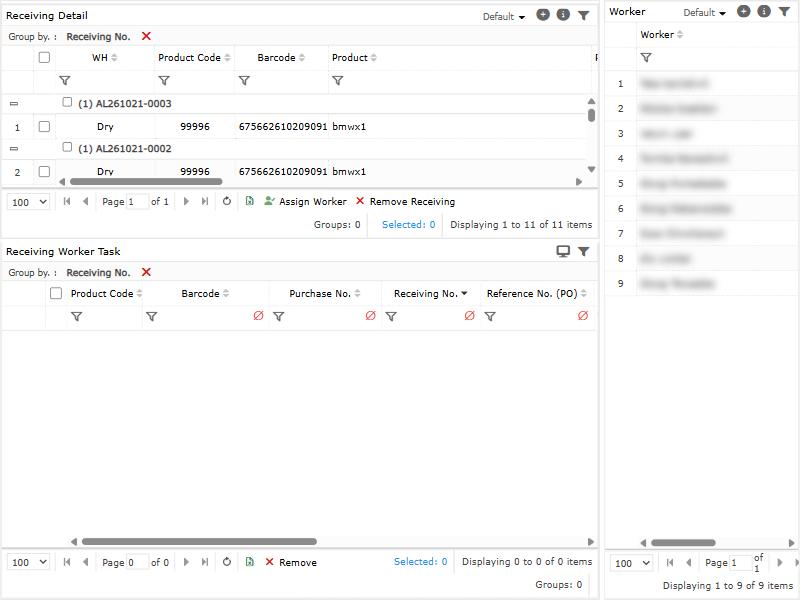
- Assign a worker. Open Receiving Worker Assign, select the lines and a worker, and click Assign Worker. The lines move to InProcess and appear on the worker’s handheld. To take a worker off, select the task under Receiving Worker Task and click Remove; this is possible only before anything is counted.
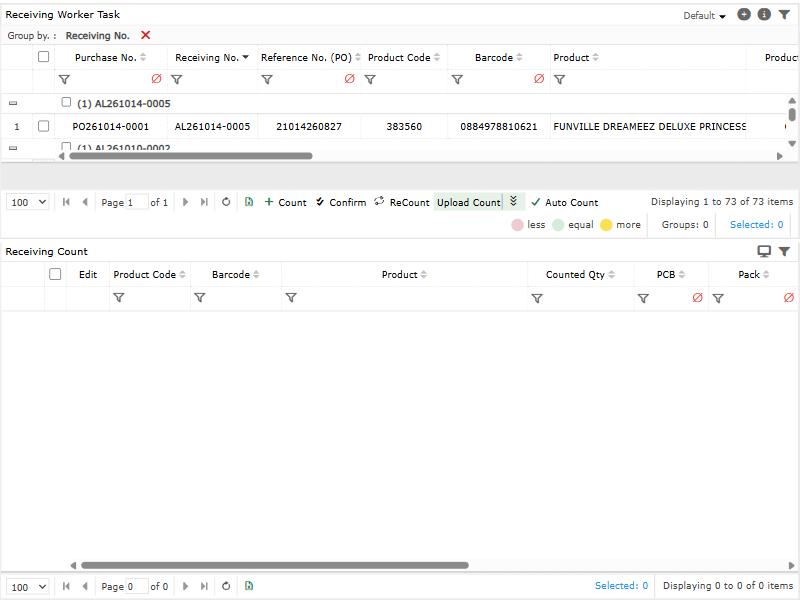
- Check the count. When the worker is done, open Receiving Count. Click Confirm to accept the count, or ReCount to send a line back to the worker. You can also enter a count here with Count, or load one from Excel with Upload Count.
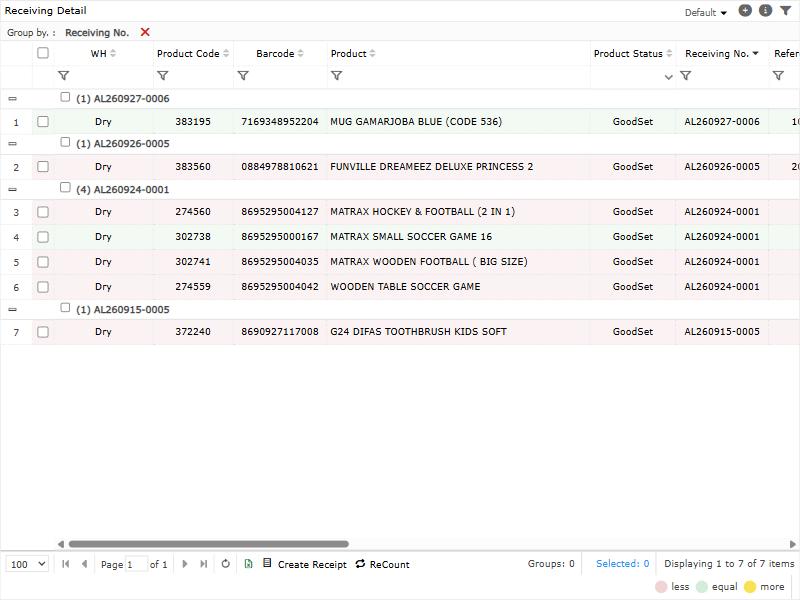
- Create the receipt. Open Receipt > Receipt Create, select the counted lines and click Create Receipt. The receipt appears under Receipt, where you can send it to the supplier with Send Email.
What happens to the stock depends on the warehouse:
- Warehouse without locations: the received quantity is available at once.
- Warehouse with locations: the quantity is not available yet. Linari creates a put-away task for every received line, and the line moves to OnPutaway. The stock becomes available when put-away is completed.
When no line of the purchase order is left open, the purchase order is finished as well.
Step by step: on the handheld
- On the home screen, tap Count. The red badge shows how many receivings are waiting.
- Choose the Purchase tab, or Sender to see the work grouped by sender. You see only the tabs your permissions allow.
- Tap a receiving. You see its products with Count and Total for each.
- Tap a product and enter Quantity. Depending on the warehouse, also enter Pcb and Pack, Exp Date and Batch No. Tap + to add the line. A product can have several lines, for example one per batch.
- Tap the tick at the top, then Yes at «Are you sure to count this items?». The app shows «Finished successfully».
Three variants, set per warehouse:
- Single-step count: quantity and details are entered in one sheet and saved with Save; counting and finishing happen together.
- Count by batch: tap +, enter the Batch No., then scan each Barcode. Confirm with the tick.
- Serial numbers: for products with serials, scan every Serial Number. The number of serials must equal the quantity.
How warehouse settings change receiving
Linari sets these during setup; ask your Linari contact to change one. Where a setting has a name on the warehouse screens, that name is used.
| Setting | What changes |
|---|---|
| Has Location | On: stock waits for put-away, and put-away tasks are created automatically. Off: stock is available at the receipt. |
| Receipt More Than Receiving, with a tolerance | Off: a count above the receiving quantity is rejected. On: more is accepted, up to the tolerance when one is set. |
| Show batch number | A batch number is required for products that have batches. |
| Show expire date | An expiry date is required for products with an expiry date. |
| Count with PCB (on by default) | Pcb and Pack appear. When Pcb is more than 1, the quantity must be a multiple of it. |
| Failure reason required | A count of 0 needs a Failure Reason. |
| Weighed product | Set on the product, not the warehouse: weighed products accept decimals and show kg on the handheld. Other products accept whole numbers only. |
| Check receipt and delivery plan | The receiving needs a planned receipt date, and it must be today. |
| Has Serial | Serial numbers are scanned for every unit. |
| Break-down flow | One count line per receiving line, and the number of packs is required for weighed products. |
Statuses
| Status | Meaning | Moves on when |
|---|---|---|
| Initial | Created, no worker yet. Can be edited or removed. | A worker is assigned: InProcess. |
| InProcess | A worker is counting. | The receipt is created: OnPutaway or Finish. Worker removed before counting: back to Initial. |
| OnPutaway | Received, waiting for put-away. Lines only, warehouses with locations only. | Put-away is completed: Finish. |
| Finish | Received and, where needed, put away. | Final. |
Common problems
| Message | Why | What to do |
|---|---|---|
| Cannot issue receipt. Some lines are not counted and confirmed yet! | A selected line is not counted or not confirmed. | Count it on the handheld, then Confirm it on Receiving Count. |
| You are not allowed to receive more than the receiving detail quantity. | The count is above the receiving quantity, and the warehouse does not accept more. | Count only what was ordered, or ask your administrator about the over-receipt setting. |
| You must enter the batch number! | The warehouse records batches for this product. | Enter the batch number from the label. |
| You must enter the expiration date. | The warehouse records expiry dates for this product. | Enter the expiry date from the label. |
| When the counted quantity is zero, you must select a failure reason. | A count of 0 needs a reason in this warehouse. | Choose a Failure Reason. |
| The total quantity must be a multiple of the unit quantity. | The product is counted in packs of more than one. | Count whole packs. On the handheld the same rule reads «Since the PCB is greater than 1, the counted quantity must be a multiple of the PCB». |
| It is not possible to enter decimals for non-weight goods. | Only weighed products accept decimals. | Enter a whole number. |
| The serial count is different from the quantity. | The scanned serials do not match the quantity. | Scan the missing serials, or correct the quantity. |
| The tasks have been counted. You cannot remove the worker. | Counting has started. | Use ReCount instead of removing the worker. |
| You can recount only in InProcess status. | The line is already received. | No recount is possible after the receipt. |
| Receiving can only be updated when it is in the Initial status. | A worker is already assigned. | Remove the worker task first, if nothing is counted yet. |
| ReceiptPlanOn must have a value! | The warehouse checks the delivery plan. | Set the planned receipt date to today. |
What happens next
In a warehouse with locations, continue with Put away. Returns, cross-dock and roll-cage receiving work differently and get their own articles. For what receiving checks and why, see Receiving.